
Edit your shop, not a CMS
Simple mode is built for storefronts. Shop is where you set your name, WhatsApp, and items. The page is how it looks. You only need Pro if you want layers and raw events.
Shop = desk (who you are, what you sell, how customers reach you). Home / other pages = window display. If WhatsApp is missing or you have no items yet, Simple opens Shop first.
1. Shop
Open Shop from the page chip, the sidebar, or the bottom bar. It is a workspace in the editor — not a popup, and not a public page on your live site.
Status + share
See Live / Draft, whether WhatsApp is ready, and how many items you have. Copy your yourname.sitenix.app link, share it on WhatsApp, or publish from here.
Identity
Business name, WhatsApp number with country code (Nigeria: 234…), and the first message customers see when a button opens chat. Number is stored once — buttons do not each need a phone field.
2. Products & items
Lists on your pages (products, services, menu) show up under Your items on Shop. You edit photo, name, price, and a short note there — the cards on the page stay in sync.
Add your first product
If you have no list yet, Shop adds a products section on Home for you. You do not need “Add a section” first.
Add item
On Shop, or the mobile dock while Shop is open, Add item clones another card onto your list.
Sold out or hide
Sold out keeps the card on the live page, faded, and changes the WhatsApp line to “is this back in stock?”. Hide from shop keeps it in Shop but drops it from the public page. Remove is for deleting the card.
3. The page (how it looks)
Switch to Home (or another page) from the page chip. Tap text, a photo, or a button to edit it. Changes apply as you type. Use Add on the dock to drop a section (products, reviews, FAQ, WhatsApp strip).
Buttons & WhatsApp
Tap a button → turn on Open WhatsApp. The number always comes from Shop. Optional: a custom first message for that item. You do not need the Pro Events tab for this.
Improve this text
On a heading or paragraph, Improve rewrites that line only. Extra chips: shorter, more local. It will not turn a heading into a chatbot greeting.
4. AI on the whole page
Open AI from the dock. Ask in plain language: add products, rewrite headlines, pick photos, move a section.
Fix my site
Runs a check for missing WhatsApp, Order/Book buttons that do not open chat, empty photos, placeholder copy, and dead links. It wires WhatsApp CTAs immediately, then cleans up the rest. It will not invent a phone number — add that on Shop.
5. Publish & share
Draft stays off your public link until you publish. From Shop or the header: Save & publish, then copy the link or Share on WhatsApp (“See my shop…”). Unpublished edits show as Live · unpublished edits until you publish again.
Pro editor (optional)
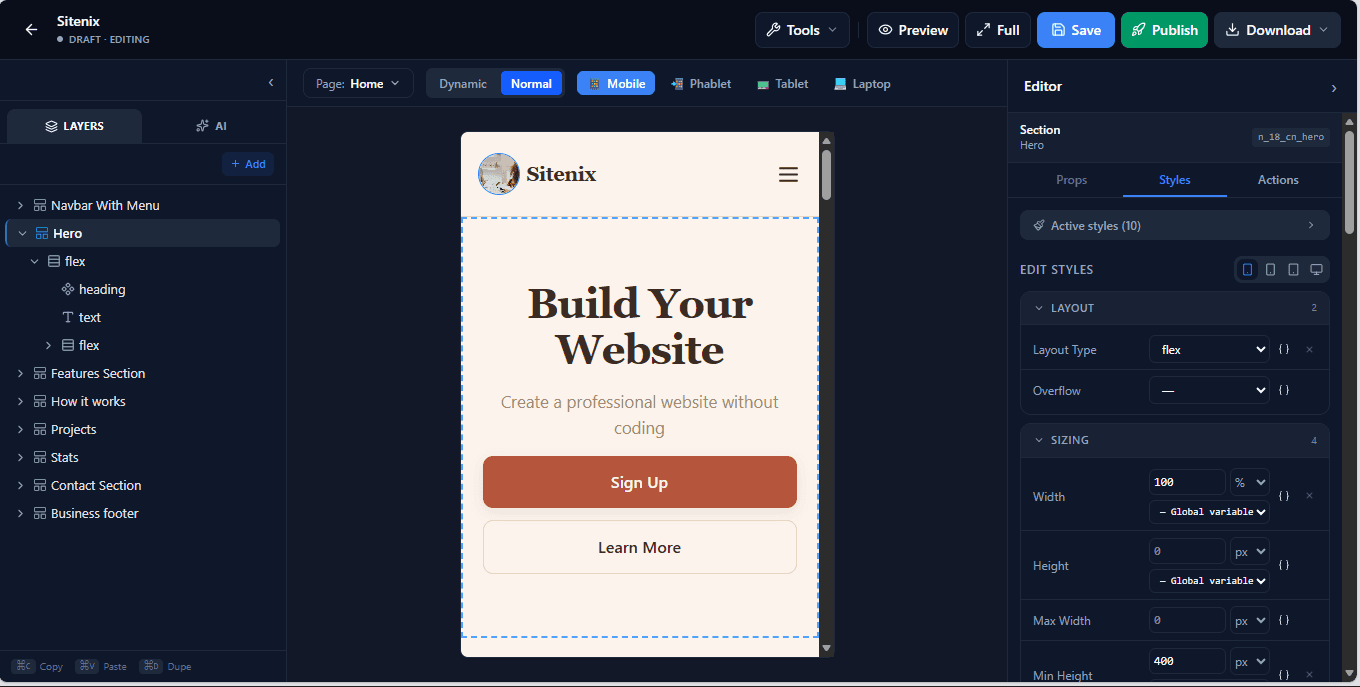
Overflow menu → Pro editor. Layers, full style inspector, Events (WhenClicked, Open WhatsApp, Open URL, Submit form), and expressions. Simple is still the default. Switch back anytime.
Uses the Shop number and default message. Optional per-button message override.
Open URL / Submit form
Link to another page or send a contact form to Dashboard → Messages.